
Roles Page
To manage Users first find theSettings page in left navigation bar by clicking on the ⚙️ icon and then select Users.
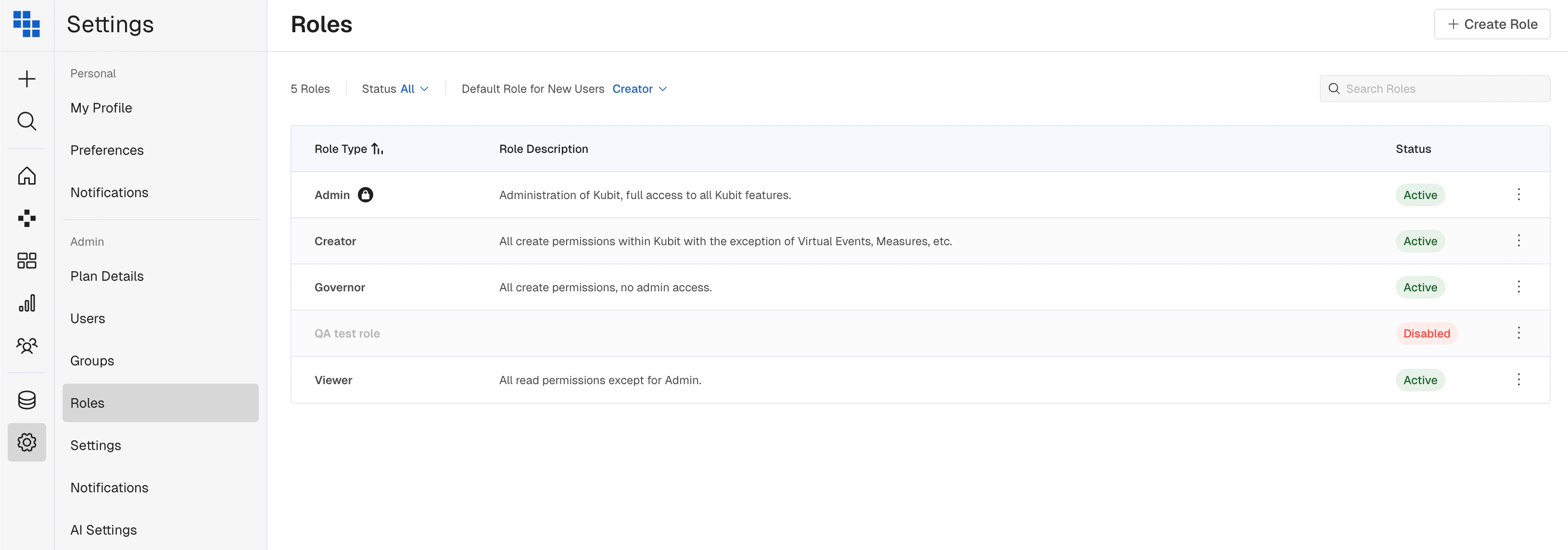
Out-of-the-Box Roles in Kubit
- Admin - A user that can add/remove users, reassign roles of users, create and manage groups within Kubit. Including all items listed in the following Roles.
- Governor - A user that can create reusable items like Virtual Events, Saved Filters, Cohorts and Measures. Including all items listed in the following Roles.
- Creator - A user that can build content in Kubit and add that content to Dashboards. This can be customized to include items that Governors are able to perform.
- Viewer - A user that can log into Kubit and view content, but is unable to build Reports and Dashboards.
- Explorer - A user that can log into Kubit and build Reports, but is unable to create Dashboards or Schedules.
Default Role
When a New User joins Kubit they will automatically be assigned the Default Role selected on this page. Kubit has this set to Creator by default but you are able to change it as needed by using the drop down at the top of the Roles page.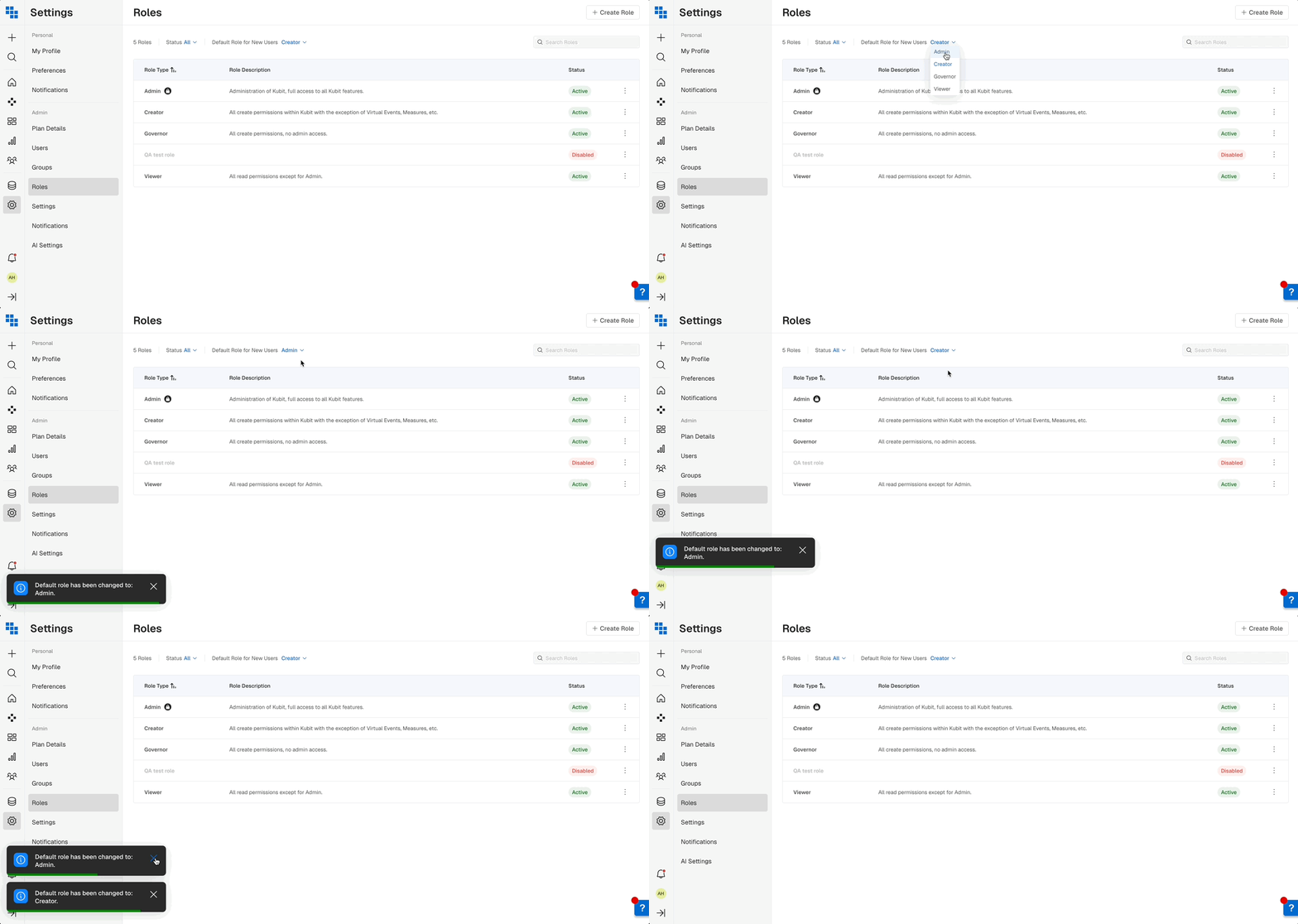
Recommendation for role to use
We recommend a Creator Role as the Default as it allows new users to build reports, dashboards, and cohorts, but not Virtual Events, etc.View, Edit, and Disable, Existing Roles
As an Admin you are able to View all permissions available to a Role as well as made edits to them as needed. This can be great if you want to fine tune permissions like “Move Dashboard” but still allow users who are Creators to create them. Simply check or uncheck permissions as needed and click “Save”. To see a full list of Permissions available to each Role click here.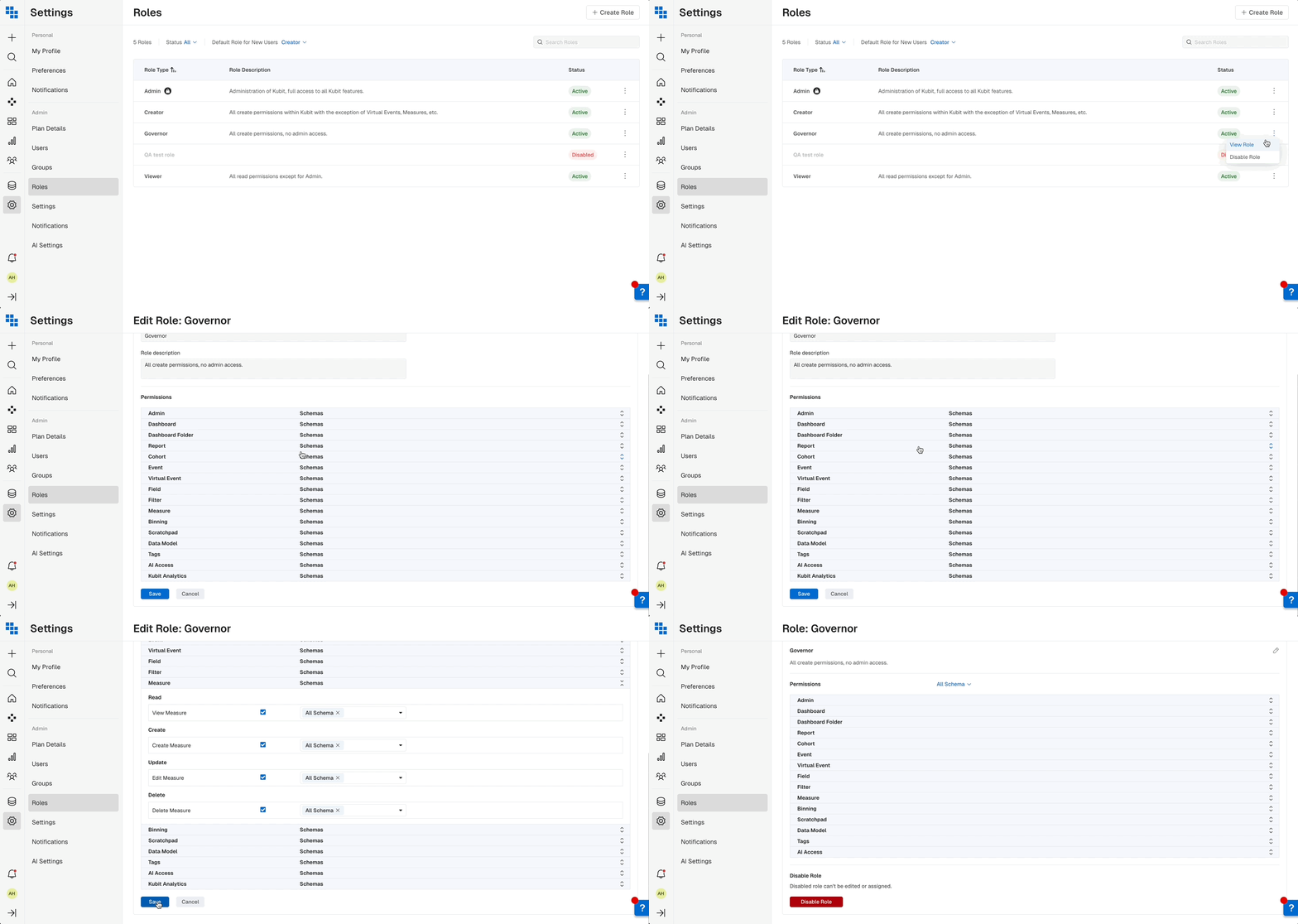
Schema Assignment Within Roles
If you have more than 1 Schema in Kubit you may want to restrict user access to them based on their Role. For example, a Product Manager may not need to see financial information available in a Schema. To restrict this access you will select the Schema as you assign Permissions within Kubit.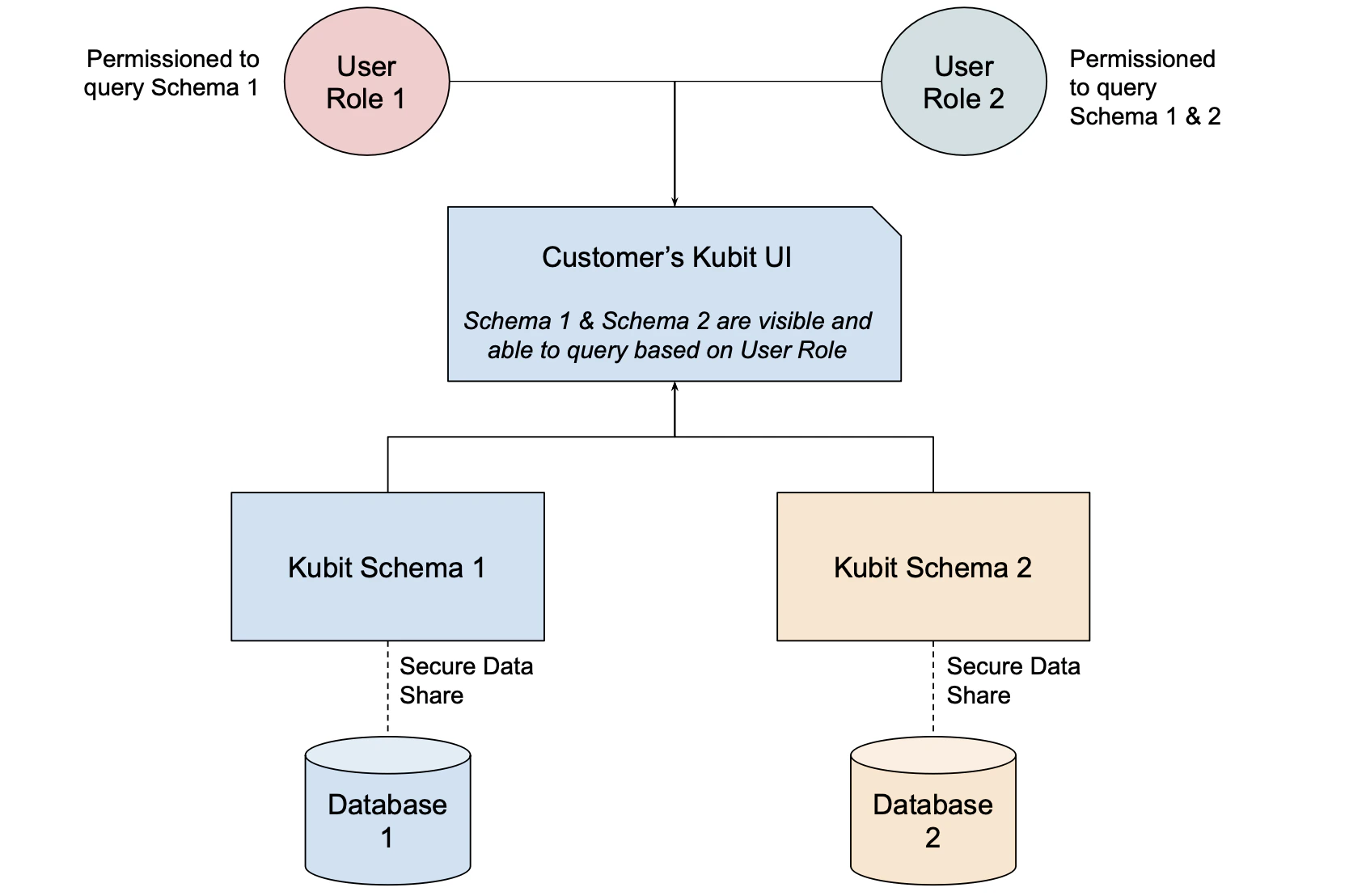
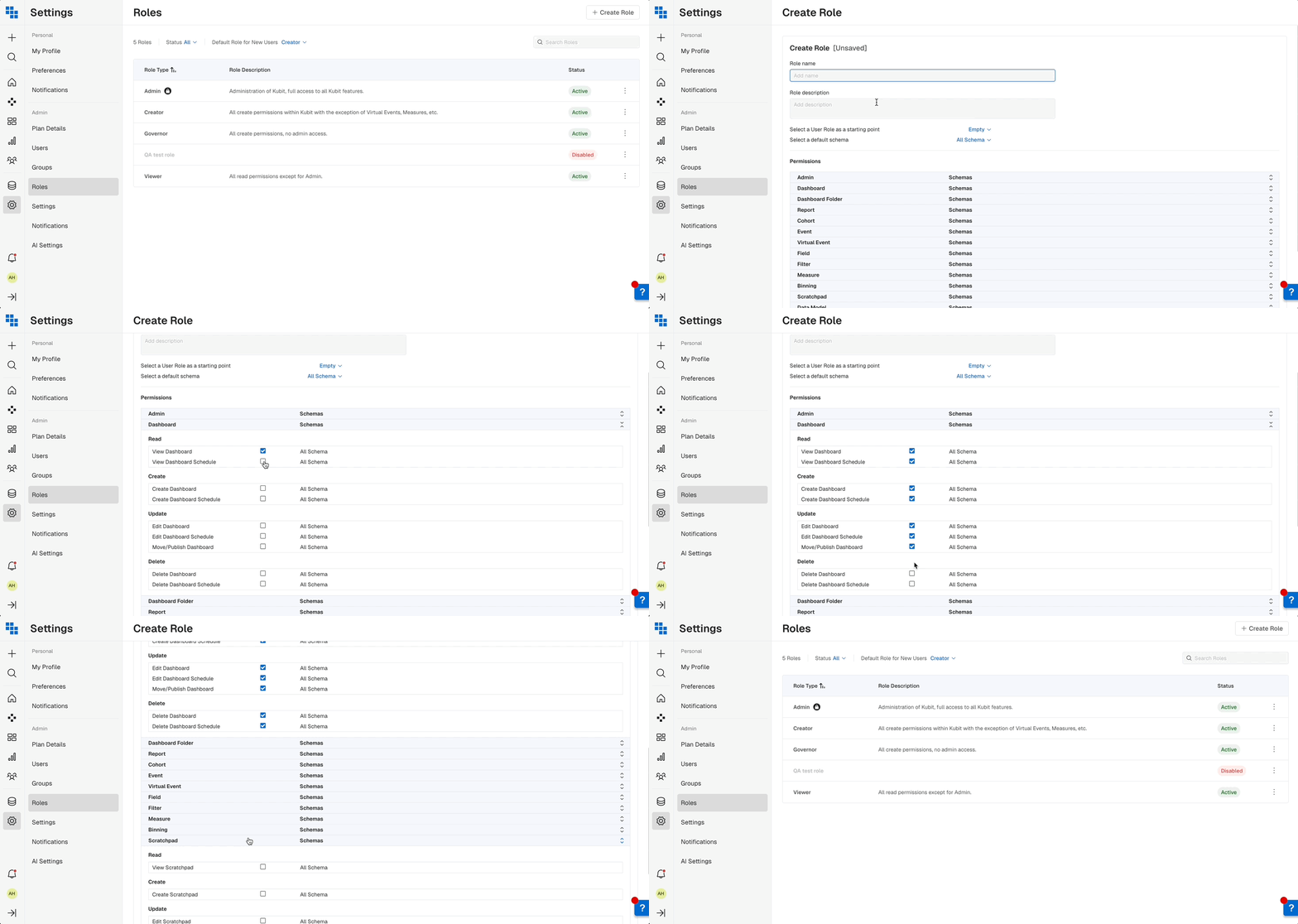
Create Role
Depending on the complexity within your teams it may be useful to create custom Roles and assign those instead of the ones we provide out-of-the-box. To Create a new Role in Kubit you’ll follow these steps:- Select
Create Rolein the top right corner of the Roles page. - Give your new Role a name and description
- (Optional)
Select a User Role as a starting point(this is great if you want to slightly modify an existing role for example or copy it limit user permissions to an individual schema). - Select the Schema that this Role has access to if it applies to just one. If not simply keep it on
All Schemas. - If you’re building a custom role - select the desired permissions for each area of Kubit.
Assigning Roles to Users
Once completed you will select the Users you want to assign this Role to in the Users page. Then edit their permissions.What’s Next